Tax Categories and Rates
Tax Categories allow you to define different tax classifications (e.g., standard sales tax, tax-free, or special reduced rates) and specify their rates over time. These categories are assigned to catalog items to automatically compute tax amounts during sales invoicing.
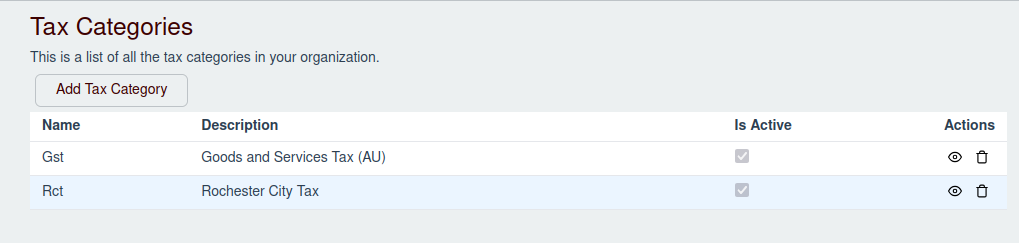
Adding a Tax Category
- Navigate to the Tax Categories page under the Sales menu.
- Click the + Add Tax Category button (located in the top right).
- In the modal that appears, enter the following:
- Name: The name of the tax category (e.g., "Standard VAT" or "GST").
- Description: An optional brief description.
- Is Active: Check this box to make the tax category available for catalog items.
- Click Save to create the category.
Managing a Tax Category
Select any tax category from the list table to open its Tax Category Drawer. The drawer contains two tabs: General and Manage Rates.
General Tab
The General tab allows you to edit the basic profile details of the tax category.
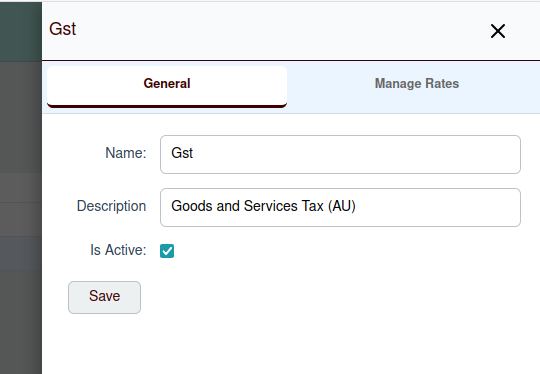
- Update the Name, Description, or toggle the Is Active checkbox.
- Click Save to apply changes.
Manage Rates Tab
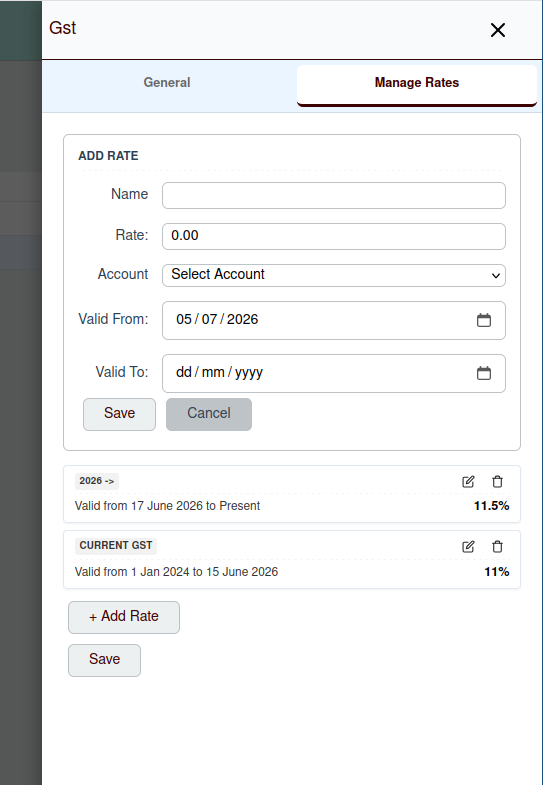
A tax category can have multiple tax rates, each applicable within a specific validity period. This ensures historical invoices remain accurate even if tax rates change over time.
Adding a Tax Rate
- Click the + Add Rate button in the Manage Rates tab.
- In the edit card that appears, configure the rate details:
- Name: A descriptive name for the rate (e.g., "GST 15%").
- Rate: The percentage value of the tax rate (e.g.,
15.0000). - Account: Select the Liability Account to which the collected tax should be allocated.
- Valid From: The date the tax rate becomes active.
- Valid To: Optional end date for the tax rate.
- Click Save on the edit card.
- Click Save at the bottom of the tab to save the rate list.
Editing or Deleting a Tax Rate
- Click the Edit (Pencil Icon) on any rate card to modify its name, rate, liability account, or validity range.
- Click the Delete (Trash Icon) on any rate card to remove it. Confirm the deletion in the modal.
- Remember to click Save at the bottom of the tab to persist your changes.