Managing Addresses
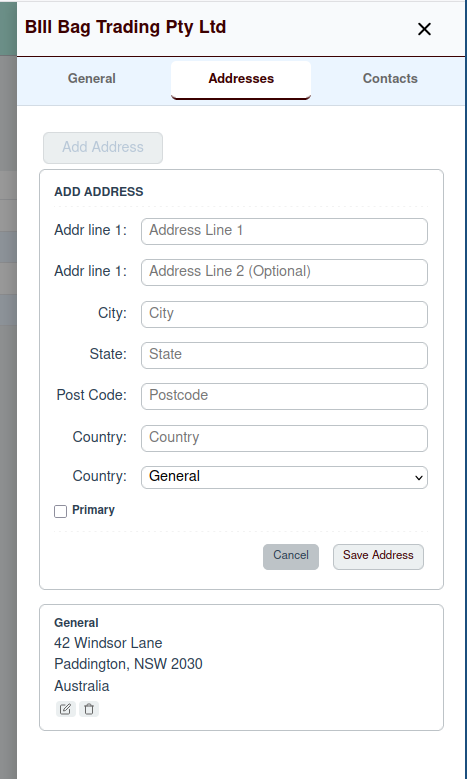
You can manage a partner's addresses from the Addresses tab within the Partner Drawer. This allows you to keep track of multiple locations for a single customer or vendor, such as separate billing and shipping addresses.
Adding an Address
To add a new address, click the Add Address button. This will open a form where you can enter the address details.
Address Fields
- Addr line 1: The main street address.
- Addr line 2: An optional field for additional address details, like an apartment or suite number.
- City: The city or town.
- State: The state, province, or region.
- Post Code: The postal code.
- Country: The country.
- Type: The type of address, such as "General", "Billing", or "Shipping".
- Primary: Check this box to mark this as the partner's primary address.
Click Save Address to add the new address to the partner's record.
Editing and Deleting Addresses
Once an address has been added, you can manage it using the icons next to the address entry:
- Edit (pencil icon): This will open the address form again, allowing you to modify its details.
- Delete (trash can icon): This will open a confirmation modal to ensure you want to permanently remove the address.