Managing Contacts
The Contacts tab in the Partner Drawer allows you to manage the contact people associated with a customer or vendor. This is useful for keeping track of who to call for billing questions, who to send marketing materials to, and so on.
Adding a Contact
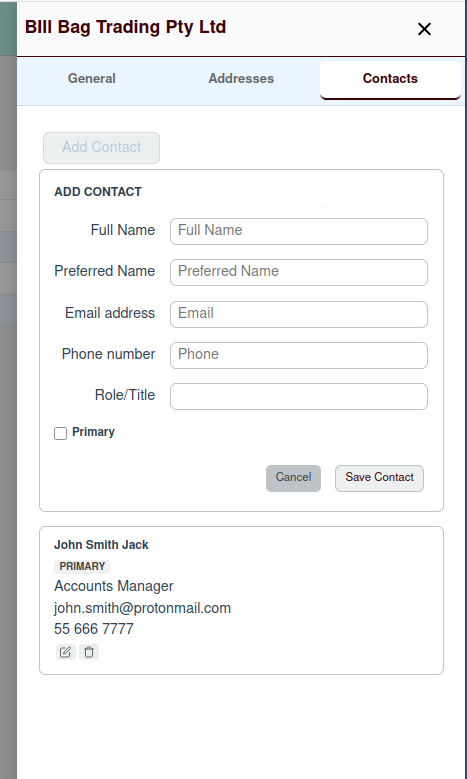
To add a new contact, click the Add Contact button. This will open a form where you can enter the contact's details.
Contact Fields
- Full Name: The contact's full legal name.
- Preferred Name: The name the contact prefers to be called.
- Email address: The contact's email address.
- Phone number: The contact's phone number.
- Role/Title: The contact's job title or role within their organization.
- Primary: Check this box to mark this person as the primary contact for the partner.
Click Save Contact to add the new contact to the partner's record.
Editing and Deleting Contacts
Once a contact has been added, you can manage them using the icons next to their name:
- Edit (pencil icon): This will open the contact form again, allowing you to modify their details.
- Delete (trash can icon): This will open a confirmation modal to ensure you want to permanently remove the contact.