Managing a Sales Invoice
When you click the action button (three dots) on an invoice in the Sales Ledger and select View, the Sales Invoice Drawer will open. This is where you can manage all details, lines, and payments for that invoice.
The drawer has four tabs:
- General: For modifying dates and basic invoice details.
- Addresses: For viewing and editing billing and shipping addresses.
- Items: For managing invoice lines.
- Payments: For recording and viewing customer payments.
At the top of the drawer, you can also print the invoice as a PDF by clicking the PDF icon.
The General Tab
The General tab displays the invoice number and allows you to update the following details:
- Invoice Date: The date the invoice was issued.
- Due Date: The date payment is due.
Click Save Changes at the bottom of the tab to save any modifications.
The Addresses Tab
The Addresses tab shows the Billing Address and Shipping Address associated with the invoice.
- Click the Edit (Pencil Icon) on either address card to reveal the address field inputs.
- Update the necessary fields (Name, Attention, Address lines, City, State/Province/Region, Postal Code, Country) and click Save Address to apply changes.
The Items Tab
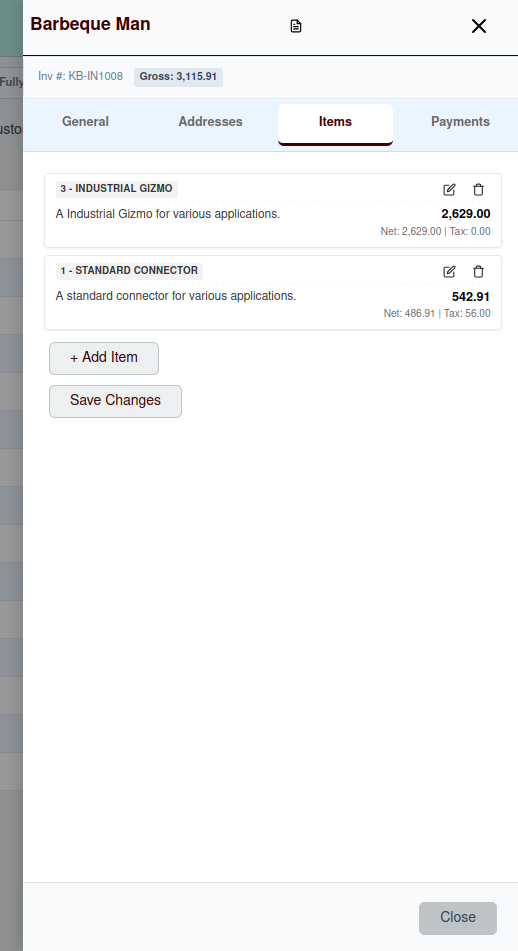
The Items tab lists all lines currently on the invoice, showing descriptions, quantities, and financial breakdowns (Net, Tax, and Gross amounts) for each.
Adding an Item
- Click the + Add Item button.
- An edit card will appear. Search for and select the catalog item.
- Adjust the description, quantity, and unit price. The tax category, tax rate, and tax amount are computed automatically.
- Click Save Item.
Editing an Item
- Click the Edit (Pencil Icon) on the item line card.
- Modify the details in the edit card.
- Click Save Item.
Deleting an Item
- Click the Delete (Trash Icon) on the item line card.
- Confirm the deletion in the modal.
Once you have updated the items, click Save Changes at the bottom of the tab to persist the updates to the invoice.
The Payments Tab
The Payments tab displays a history of all payments recorded against this invoice and includes a form to submit new payments.
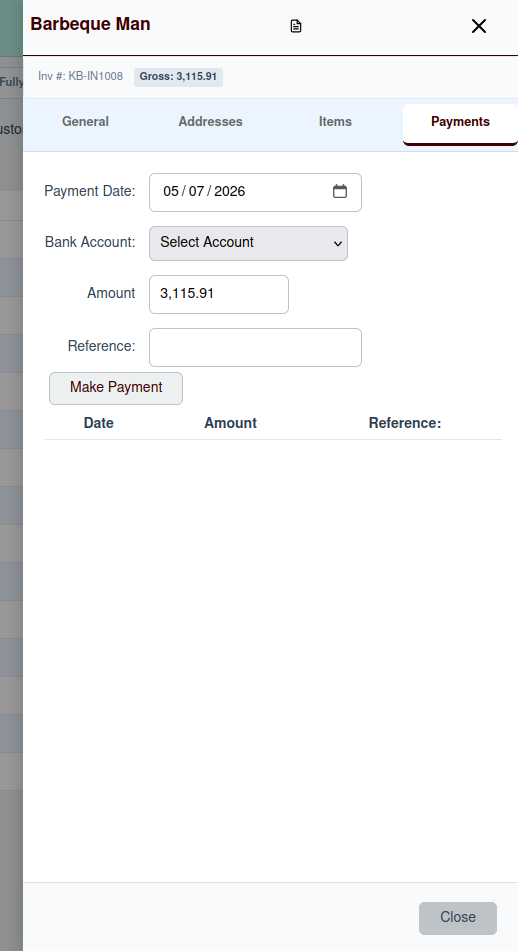
To record a new payment:
- Payment Date: The date the customer payment was received.
- Bank Account: Select the bank account where the payment was deposited.
- Amount: The amount of the payment (defaults to the remaining balance due).
- Reference: An optional reference number or notes for the transaction.
Click Make Payment to apply the payment. The invoice's Outstanding Balance badge at the top of the drawer will automatically adjust.