Catalog Items
Catalog Items represent the goods or services your organization sells. By maintaining a centralized catalog, you can quickly add pre-configured items to sales invoices with consistent naming, pricing, and appropriate tax rules.
Searching and Filtering Items
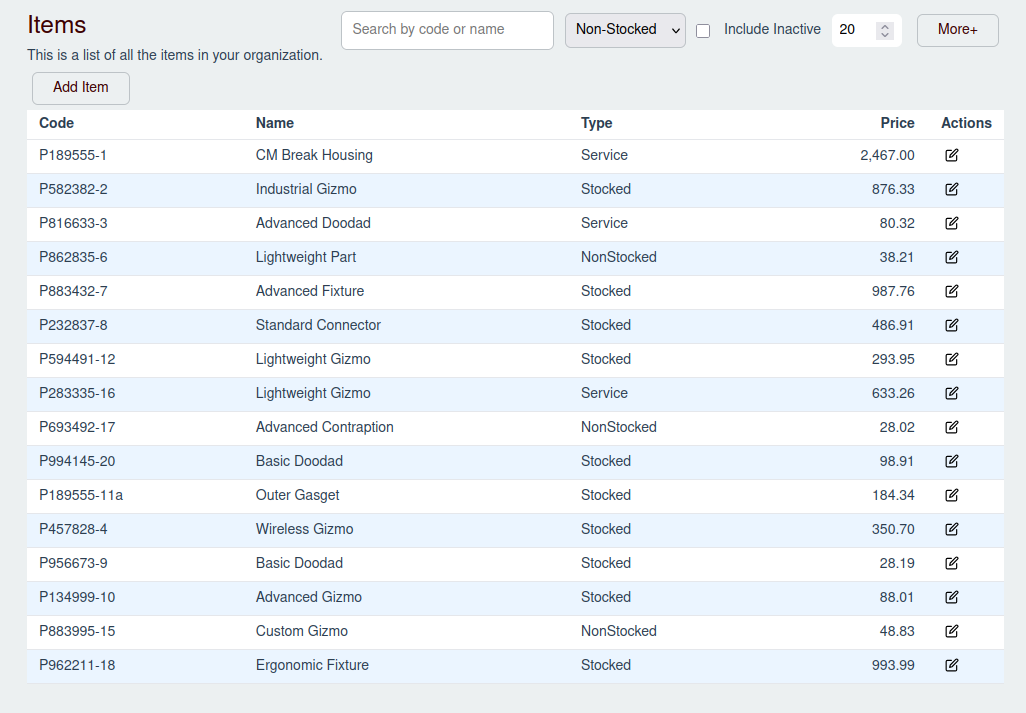
On the Items page, you can search for items by code or name using the filter bar. You can also filter by:
- Type: Select "All Types," "Service," "Stocked," or "Non-Stocked."
- Status: Toggle Include Inactive to view discontinued items.
Adding a Catalog Item
- Navigate to Sales -> Items in the sidebar.
- Click the Add Item button.
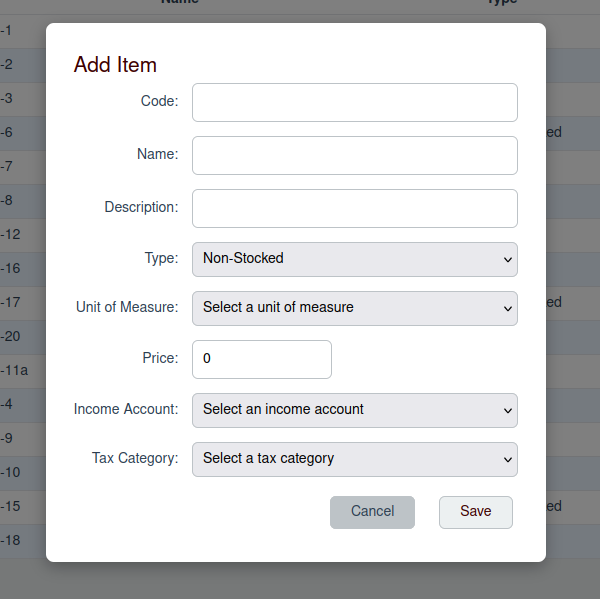
- In the modal, configure the item details:
- Code: A unique identifier for the item (e.g.,
SVC-DEVorPROD-001). - Name: The display name of the item.
- Description: An optional detailed description that automatically populates on invoice lines.
- Type: Select from:
- Service: Non-tangible services measured in hours or tasks.
- Stocked: Physical inventory.
- Non-Stocked: Physical goods that are not tracked as inventory.
- Unit of Measure: Select the applicable unit (e.g.,
Each,Hour). - Price: The standard unit selling price.
- Income Account: Select the Revenue account to which sales income for this item should be posted.
- Tax Category: Assign a predefined tax category to determine the tax rate applied to this item during invoicing.
- Code: A unique identifier for the item (e.g.,
- Click Save to add the item.
Editing or Disabling a Catalog Item
- Edit: Click the Edit (Pencil Icon) on any row in the item table. Here you can modify all fields or toggle the Is Active checkbox to retire/discontinue the item.
- Delete: Click the Delete (Trash Icon) on a row to remove the item from the catalog. You can only delete catalog items that have never been used on a sales invoice.