Adding a New Account
To add a new account, you begin by clicking the Add Account button on the main Chart of Accounts page. This will open the "Add New Account" modal dialog.
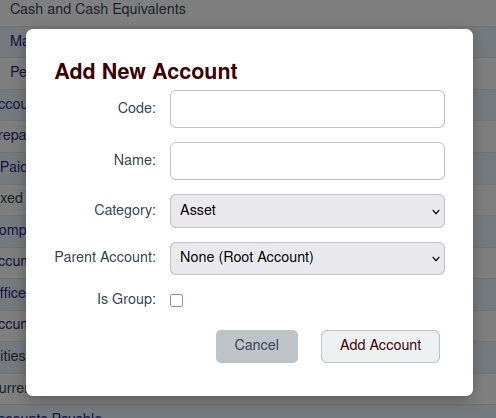
Account Fields
In the modal, you will need to fill in the following details for the new account:
- Code: A unique code for the account. This is often a number, like
6100for an expense account. - Name: A descriptive name for the account, such as "Office Supplies" or "Sales Revenue".
- Category: The financial category for the account. You must select one of the five main account types: Asset, Liability, Equity, Revenue, or Expense.
- Parent Account: If this account is a sub-account of another, you can select the parent account here. For a top-level account, you can leave this as "None".
- Is Group: Check this box if the account is a grouping account that will contain other sub-accounts. Group accounts do not have transactions posted directly to them.
- Is Bank Account: Check this box if the account represents a real-world bank account.
Once you have filled in the details, click the Add Account button to save the new account.