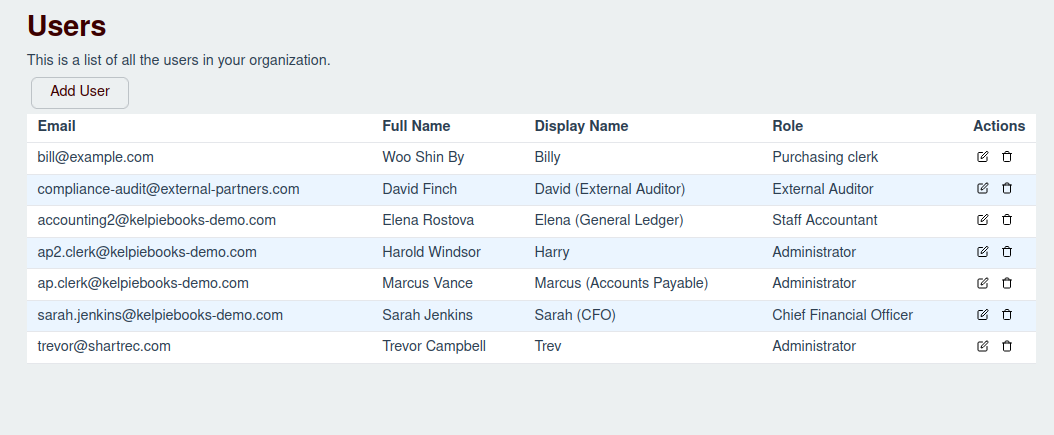
The user management screen allows you to add, edit, and remove users from your organization.
Adding a User
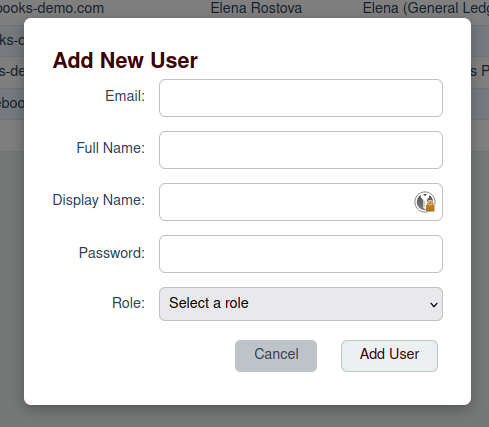
To add a new user, click the "Add User" button. This will open a modal where you can enter the user's details.
Editing a User
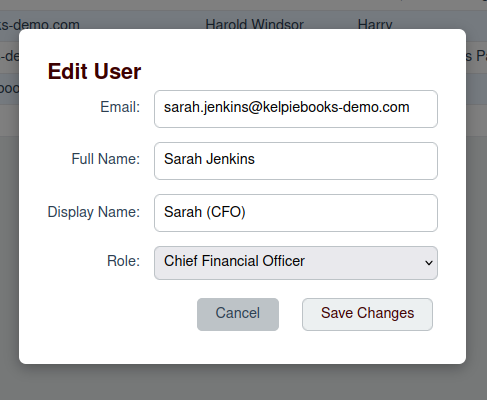
To edit an existing user, click the edit icon next to the user in the list. This will open a modal where you can update the user's details.
Deleting a User
To delete a user, click the delete icon next to the user in the list. You will be asked to confirm the deletion.