The Account Ledger
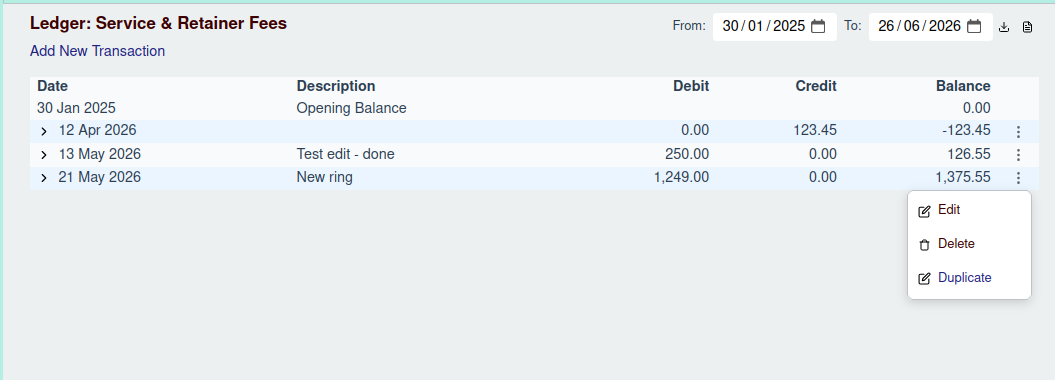
The Account Ledger provides a detailed view of all transactions for a single account over a specific period. It is the best place to see the detailed history of an account's activity.
Navigating to the Ledger
You can access the ledger for an account by clicking on the account's name or balance from the Chart of Accounts page.
Features
Date Range and Reporting
At the top of the page, you can specify the date range for the transactions you want to view. The ledger will update automatically when you change the start or end date.
You can also export the current view as a CSV or PDF file using the export buttons in the header.
Transaction List
The main part of the screen is the transaction list, which includes the following columns:
- Date: The date the transaction occurred.
- Description: The description of the transaction.
- Debit: The amount debited from the account.
- Credit: The amount credited to the account.
- Balance: The running balance of the account after each transaction.
- Actions: A set of controls for managing each transaction.
The list begins with the Opening Balance for the selected period, followed by a chronological list of all transactions.
Managing Transactions
You can perform several actions on the transactions listed in the ledger.
Add a New Transaction
To create a new transaction for the current account, click the Add New Transaction button. This will take you to the "New Transaction" screen with the current account pre-selected.
- For more details, see the New Transaction page.
Edit a Transaction
To edit an existing transaction, click the Edit button (pencil icon) in the "Actions" column for that transaction row. This will open the transaction in the "New Transaction" screen for editing.
- For more details, see the Edit Transaction page.
Reverse a Transaction
If you need to reverse a transaction, click the Reverse button (undo icon). This will open a confirmation modal where you can provide a description for the reversal.
- For more information, see the Reverse Transaction page.
Delete a Transaction
To permanently delete a transaction, click the Delete button (trash can icon). This will open a confirmation modal to prevent accidental deletions.
- For more information, see the Delete Transaction page.